A technician view that works in any phone browser
Technicians open CalSpark in a phone browser, see their own jobs, tap On my way, update status and add job photos. There is nothing to install. An iOS app is built but not in the App Store.
What a technician sees
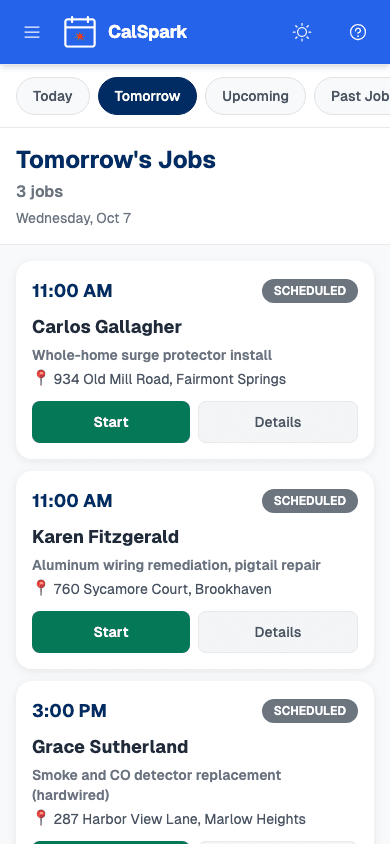
The technician view is a phone-friendly layout inside the same CalSpark you use in the office. A technician sees their own jobs, can update a job's status as the work moves along, and can add photos to the job.
Roles decide what shows. A technician sees what the technician role allows. Admins and front office see the rest, including the dispatch board where the jobs are placed.
Get a technician started
- An admin adds the person as a user with the technician role. Up to 10 users are included in the flat price.
- The technician opens CalSpark in their phone's browser and signs in.
- They see their own jobs. Office assigns them from the board.
- When they leave for a job, they tap On my way. The button shows for scheduled and in-progress jobs, and the first tap records the start of the trip.
- As the work moves, they update the job status: in progress, then completed.
On my way does not message the customer by itself. It records the trip. A text to the customer goes out only if your company has set up its own Twilio account, turned on Text messaging, switched on the On-my-way text automation, and the customer has agreed to texts. Without that setup, call the customer yourself.
Job photos from the field
Photos attach to a job. They can be added from the technician view on a phone and from the web app in the office, and both places show the same photos. That means the office sees the before and after without a phone call.
| Type | Typical use |
|---|---|
| Before | The state of things when the tech arrived. |
| After | The finished work. |
| Damage | Existing damage or a problem found on site. |
| Completion | Proof the job was done. |
| Other | Anything that does not fit above. |
- Each photo can be up to 10 MB.
- Accepted formats are JPEG, PNG and HEIC.
- HEIC is what iPhones take by default, so it works as is.
A day in the field
Picture a technician with three jobs. In the morning they open the view on their phone and see the day, in order. At the first house they mark the job in progress and take a before photo of the old fitting. When the work is done they take an after photo, add a completion photo, and mark the job completed.
Back at the office, the front desk sees the status change and the photos on the job without a call or a text. If the tech found damage that was not in the notes, a damage photo is already attached when the customer asks about it. The same record then feeds the invoice.
- Open the view and find the next job.
- Mark it in progress when you start.
- Take before photos, then work.
- Add after and completion photos.
- Mark the job completed.
No install, and what that means
Small shops often have a mix of phones, and nobody wants to manage app installs for a seasonal helper. That is the point of a browser view. Because it is a web view, there is no app to download. Open the address in a browser, sign in, and go. It works the same on an iPhone or an Android phone, because it is a web page, not an app for one platform.
It also means a technician needs a phone signal to load jobs and send updates. There is no offline mode, and we would rather say that plainly than have you find out on a basement job. Once work is done, the office can invoice it.
Not there yet
- iOS technician app: built, but not in the App Store. No date to give.
- Android app: not built. Android technicians use the browser view.
- Push notifications: not built. A technician sees new jobs when they open the view.
- Offline mode: not built. The view needs a connection.
Questions
Do technicians need to install anything?
No. They open CalSpark in the browser on their phone and sign in. Nothing comes from an app store. The technician view is part of the web app, and it is laid out to work on a small screen.
Is there an iOS app?
An iOS technician app is built, but it is not in the App Store, and we have no date to give. Until it is released, the phone browser view is the way technicians use CalSpark.
Is there an Android app?
No, an Android app is not built. Android technicians can use the same phone browser view as everyone else, including updating job status and adding photos to a job.
What photo types and sizes can technicians upload?
Photos can be marked before, after, damage, completion or other. Each file can be up to 10 MB, in JPEG, PNG or HEIC format. Photos show on the job in both the web app and the technician view.
Does it work without a signal or send push alerts?
Neither is built. The view needs a connection to load jobs and save updates, and there are no push notifications. Technicians see their jobs when they open the view and sign in.
Keep reading
- Features: what CalSpark does todayDispatch board, estimates, recurring jobs, invoices with card payments, custom automations, Slack notifications and CSV export. What works now, what is planned and what is not built.
- Job scheduling and dispatch timelineA dispatch board with a row per technician, in day and week views. Click to create a job, drag to reschedule or reassign, and get a warning when two jobs overlap.
- What a small trades shop needs from field service softwareThe short list of features a 3 to 10 person shop uses every week, what it can skip, and how to test a tool with your own jobs.
- Pricing: $49 a month flat for up to 10 usersOne plan. $49 a month for up to 10 users, no per-user fees. 14-day free trial with no card. See how it compares to per-user pricing.
Try it with your own jobs
14-day free trial. No card. $49 a month flat for up to 10 users after that.