Guide
How to set up maintenance-visit schedules for HVAC and plumbing
Tune-ups, filter changes, flushes and backflow tests all repeat. If you book each one by hand, some get missed. This guide shows how to set them up as recurring jobs in CalSpark, with example schedules for HVAC and plumbing shops and how to handle the changes that always come.
By CalSpark team. Published . Updated .
Decide the schedule before you click anything
Write down, for each type of visit, how often it repeats, how long it takes, who usually does it and what the customer pays. That is the whole setup. CalSpark asks for the same things.
| Trade | Visit | How often | Typical length |
|---|---|---|---|
| HVAC | Spring cooling tune-up | Every 12 months, in spring | 1 hour |
| HVAC | Fall heating tune-up | Every 12 months, in fall | 1 hour |
| HVAC | Filter change | Every 3 months | 30 minutes |
| Plumbing | Water heater flush | Every 12 months | 1 hour |
| Plumbing | Backflow test | Every 12 months | 45 minutes |
These are examples, not rules. Use the lengths and intervals that match your work and what you promised the customer.
Create a recurring job
- Create the first visit as a normal job for the customer and the address, with a clear description such as "Spring cooling tune-up".
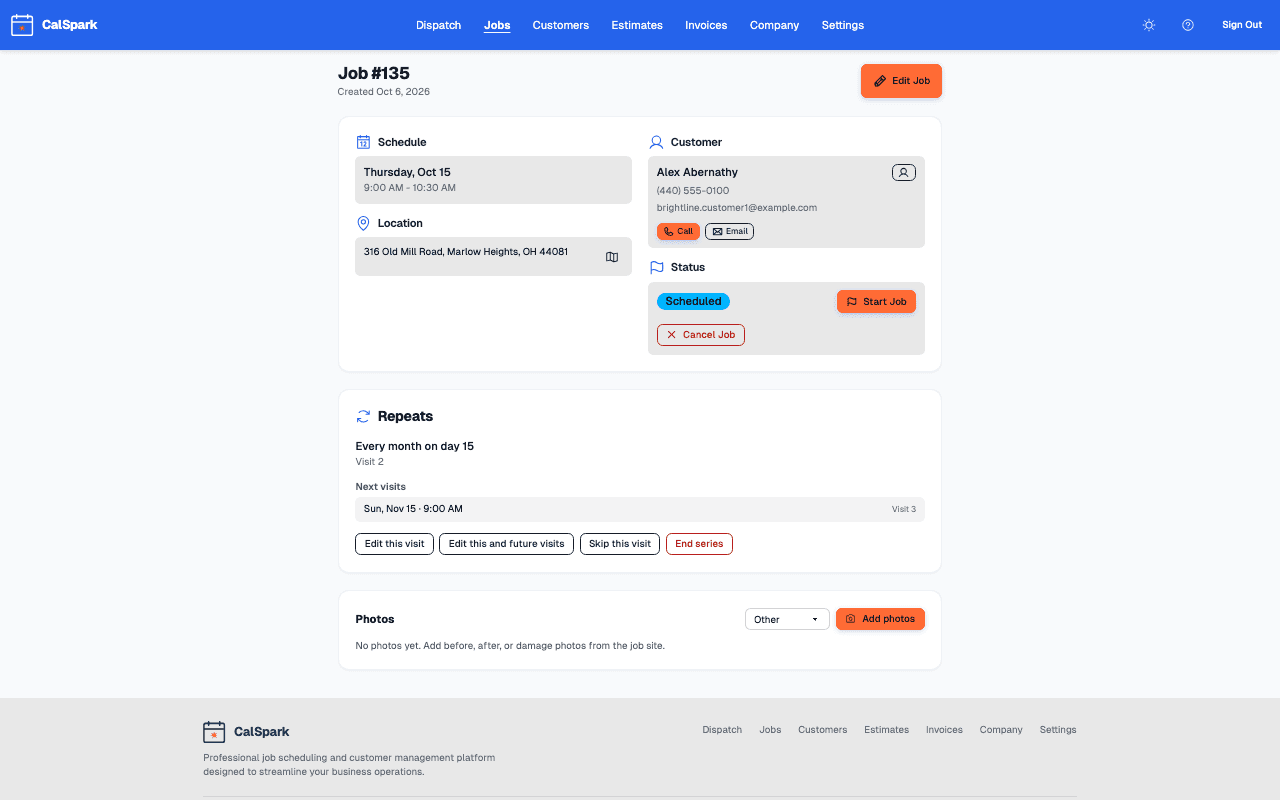
- Open the job. On the Repeats card, choose Make this job repeat.
- Pick the cadence. Every 6 months covers spring and fall in one series. Every 12 months suits an annual test.
- Set the default technician, the duration in minutes, the start time and the date of the first visit.
- Choose when it ends: never, after a number of visits, or on a date, such as the end of a contract.
- Confirm. CalSpark creates the visits a few weeks ahead, and keeps creating them as time passes.
Each visit is a normal job. It appears on the dispatch board, can be dragged to another day, and can hold photos and notes. The recurring jobs page lists every cadence option.
Spring and fall in one series or two
A series that repeats every 6 months gives you visits in April and October, if the first one is in April. That is the simplest setup, and it works when both visits are the same job.
If the two visits differ, make two series that each repeat every 12 months. The spring series says "Cooling tune-up" and the fall series says "Heating tune-up", so the technician knows what to do without reading notes. You can also set different durations.
For a list of agreement customers, import them first. See how to import customers from a spreadsheet. Then create the first visit for each and make it repeat.
Handle the changes that always come
| Situation | Action |
|---|---|
| Customer is away for the booked week | Skip this visit, or drag it to another day. Skip keeps the series going. |
| A different tech covers one visit | Edit this visit only and change the technician. |
| A new default technician for the route | Edit this and future visits and change the technician. |
| Customer cancels the agreement | End the series and choose whether to keep or remove the future visits. |
| Visit takes longer than planned | Edit this visit only. Edit future visits if every visit now takes longer. |
A visit you edit by itself stays as you set it, even if you later change the series. That prevents a one-off change from being undone by accident.
Reminders and billing
Switch on the appointment reminder email so customers hear from you before each visit. It is off until an admin turns it on under Settings, Automations. The wording is editable. See appointment reminder emails customers read.
Billing is per visit. Each visit is a job, so you invoice it when it is complete. If a customer pays a yearly agreement fee, create that invoice yourself. There is no separate agreement or membership billing.
Keep a note of equipment details, such as model and serial numbers, in the customer or job notes, or attach a photo of the data plate. There are no equipment records yet.
Check the board each week
Because visits appear a few weeks ahead, look at the Week view once a week. Visits show up with a technician already assigned, so the job is to spot a technician who is overloaded and drag a visit to a quiet day. The dispatcher checklist fits this routine.
Questions
How far ahead does CalSpark create visits?
A few weeks ahead. It keeps creating visits as time passes, so the board does not fill with next year's visits.
Can I give one visit a different technician?
Yes. Edit that visit and choose this visit only. The other visits keep the default technician.
What happens to future visits when I end a series?
You choose. Keep the future visits that already exist, or remove them.
Does CalSpark bill agreements automatically?
No. Each visit is a job that you invoice. A yearly agreement fee is an invoice you create yourself.
Can I run two different visit types for one customer?
Yes. Make a separate series for each visit type, each with its own description, duration and cadence.
Keep reading
- Recurring jobs for maintenance visitsRepeat a job every N days, weeks or months. Edit one visit or all future visits, skip a visit, or end the series. Built for maintenance agreements.
- Scheduling and invoicing software for HVAC companiesSeasonal peaks, install crews and service techs on one dispatch board, with multiple addresses per customer. $49 a month flat.
- Scheduling and invoicing software for plumbersEmergency call-outs, warranty callbacks and parts runs on one dispatch board you can drag. $49 a month flat for up to 10 users, no per-tech fees.
- Appointment Reminder Emails Customers Actually ReadWhat to put in an appointment reminder email for a trade business: subject lines, the first line, example wording, 24 hour and 2 hour timing, and how to check the log.
- A dispatcher daily checklist for a small shopA practical daily and weekly schedule checklist for the person dispatching 5 to 10 technicians, from the evening before to the end of the day.
Try it with your own jobs
14-day free trial. No card. $49 a month flat for up to 10 users after that.