Dispatch board: every technician and every job in one view
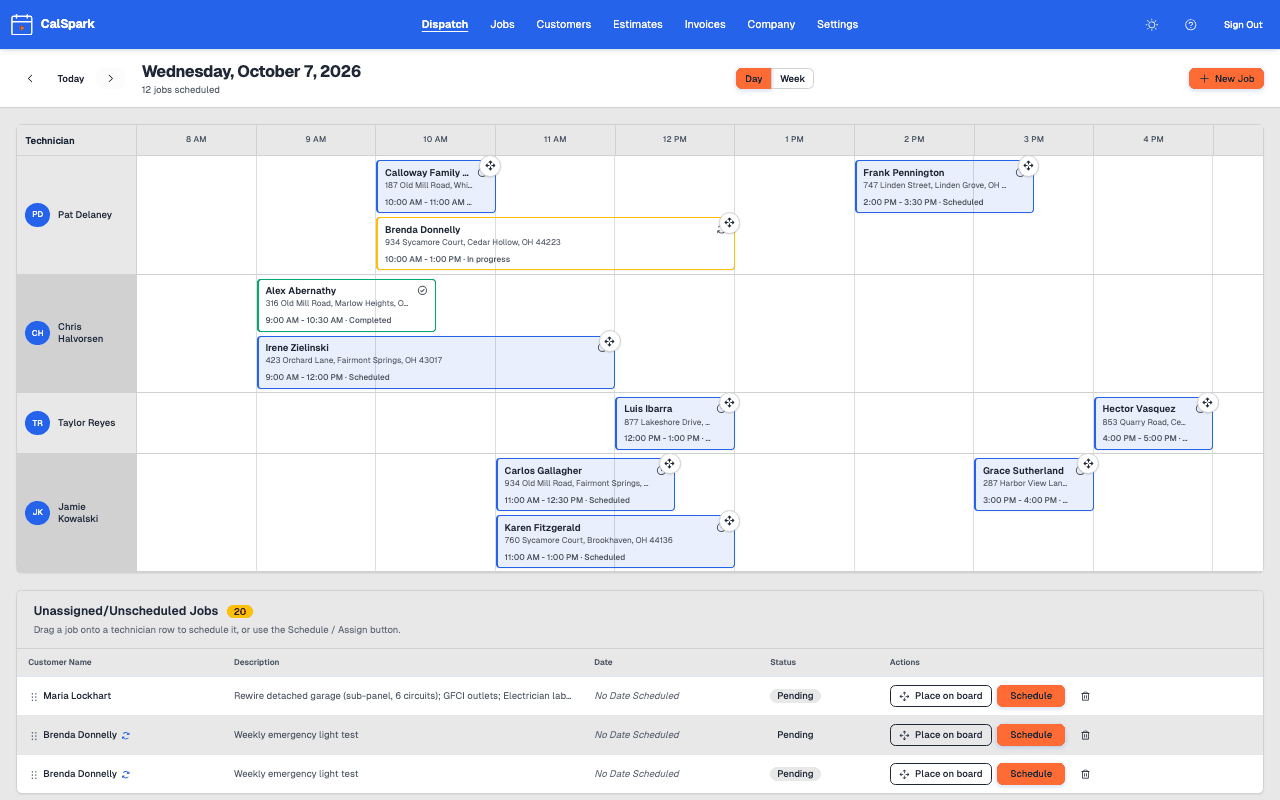
The dispatch board shows one row per technician, by day or by week. Click to book a job, drag to move it, and get a warning before you double-book anyone. Jobs without a time or a tech wait in a queue.
How the dispatch board works
The board has a Day view and a Week view. Use the Day/Week toggle to switch. In the Day view each technician gets a row, and each job is a block on that row, placed at its start time and sized by how long it runs. Gaps are open time. Overlaps are easy to spot. You do not scroll a list to find them. The Week view shows the whole week so you can see where the open days are.
You do three things from the board. Click an open spot on a technician's row to create a job there. In the Week view, click a day cell. Drag a block to a new time to reschedule it. Drag a block to another row, or to another day in the Week view, to reassign or move it. Jobs that have no technician yet sit in an unassigned list, and you drag them from that list onto a row.
Book a job in five steps
- Pick the day on the board and find the technician's row.
- Click the open time where the job should start. The new job form opens.
- Choose the customer. Their address list is right there.
- Pick the address where the work happens. A customer can have several, so choose the right one.
- Set the length, write a short description of the work, and save. The job shows up as a block on the row.
Moving jobs and the pending queue
Move a job
- Find the job block on the board for the day you are looking at.
- Drag it to a new time on the same row to reschedule it.
- Or drag it to another technician's row to reassign it.
- Drop it. If it now overlaps another job for that technician, CalSpark warns you.
- Change the time or the tech, or choose 'schedule anyway' if the overlap is on purpose.
Not every job arrives with a time. A job saved without one is pending, and it waits in the queue. Give it a time and it becomes scheduled. A scheduled job with no technician waits in the unassigned list until you drag it onto a row. Nothing gets lost between the phone call and the board. For work that repeats, such as a spring and fall tune-up, make the job recurring and CalSpark creates the visits for you. When a customer says yes to a quote, the approved estimate turns into a pending job.
| Status | What it means |
|---|---|
| Pending | No time yet. Waits in the queue. |
| Scheduled | Has a time. Sits on the board. |
| In progress | The technician has started the work. |
| Completed | The work is done. Ready to [invoice](/features/invoicing). |
| Cancelled | Called off. It stays on record. |
How conflicts work
A conflict is two jobs that overlap in time for the same technician. A job from 9:00 to 11:00 and another from 10:30 to 12:00 is a conflict, because one person cannot be at both.
- You create a job or move one, and CalSpark compares it with that technician's other jobs.
- If they overlap, you get a warning instead of a silent double-booking.
- You can fix it by changing the time or the technician.
- Or you can choose 'schedule anyway'. Some overlaps are real, like a helper riding along, so the call stays yours.
Customers, import and roles
Each customer can have several addresses and notes. A landlord with three rentals is one customer with three addresses. When you book, you pick the address for that job, so the tech goes to the right door. Customer search matches any part of a name, company, email, phone number or address, so you find the right one while the caller is still talking.
Coming from a spreadsheet? Import customers from a CSV file. You map the columns, and duplicates are flagged before they land. The import guide walks through it.
There are three roles: admin, front office and technician. Up to 10 users fit in the flat $49 a month. Technicians use the phone view for their own jobs. For a day-to-day routine, see the dispatcher checklist.
Not there yet
- Route optimization: not built. You choose the order of stops by dragging jobs. Recurring jobs are built, so repeat visits do not have to be booked one at a time.
- Text message reminders: not turnkey. Email reminders exist; text messages need your own Twilio account and are off by default.
- Two-way calendar sync: not built. Calendar feeds are one-way and read-only, and Google Calendar push is planned.
Questions
What counts as a scheduling conflict?
Two jobs that overlap in time for the same technician. CalSpark warns you when you create or move a job into that overlap. You can change the time or tech, or choose schedule anyway if the overlap is on purpose.
Can I see a whole week at once?
Yes. The board has a Day and a Week toggle. In the Week view you can click a day cell to create a job and drag a job chip to another day or technician.
Can I drag jobs on a tablet?
Yes. On the day board, press and hold a job to pick it up, then drag. Or tap Move on a job and tap an empty slot. Keyboard arrows plus Enter also work.
What happens to jobs with no time or technician?
A job with no time is pending and waits in the queue. A scheduled job with no technician waits in the unassigned list. You drag either one onto a technician row when you are ready to place it.
How do I get my customers in?
Import a CSV file. You map your columns to CalSpark fields, and duplicate detection flags repeats before they are added. You can also add customers by hand. Each customer can hold several addresses and notes.
Keep reading
- Features: what CalSpark does todayDispatch board, estimates, recurring jobs, invoices with card payments, custom automations, Slack notifications and CSV export. What works now, what is planned and what is not built.
- Technician view and iOS app statusTechnicians use the web view on any phone today to see jobs, tap On my way, update status and add photos. The iOS app is built but not in the App Store.
- A dispatcher daily checklist for a small shopA practical daily and weekly schedule checklist for the person dispatching 5 to 10 technicians, from the evening before to the end of the day.
- How to import customers from a spreadsheetClean a customer spreadsheet, map columns, catch duplicates and test with ten rows before you load the rest into your field service software.
- Recurring jobs for maintenance visitsRepeat a job every N days, weeks or months. Edit one visit or all future visits, skip a visit, or end the series. Built for maintenance agreements.
- Pricing: $49 a month flat for up to 10 usersOne plan. $49 a month for up to 10 users, no per-user fees. 14-day free trial with no card. See how it compares to per-user pricing.
Try it with your own jobs
14-day free trial. No card. $49 a month flat for up to 10 users after that.